
Features Guide
This guide covers some of the less obvious features in Obsetico that are worth knowing about.
Custom Routes
If your folders contain sub-folders with locations attached, you can view all of them on a single map and open the route in your navigation app.
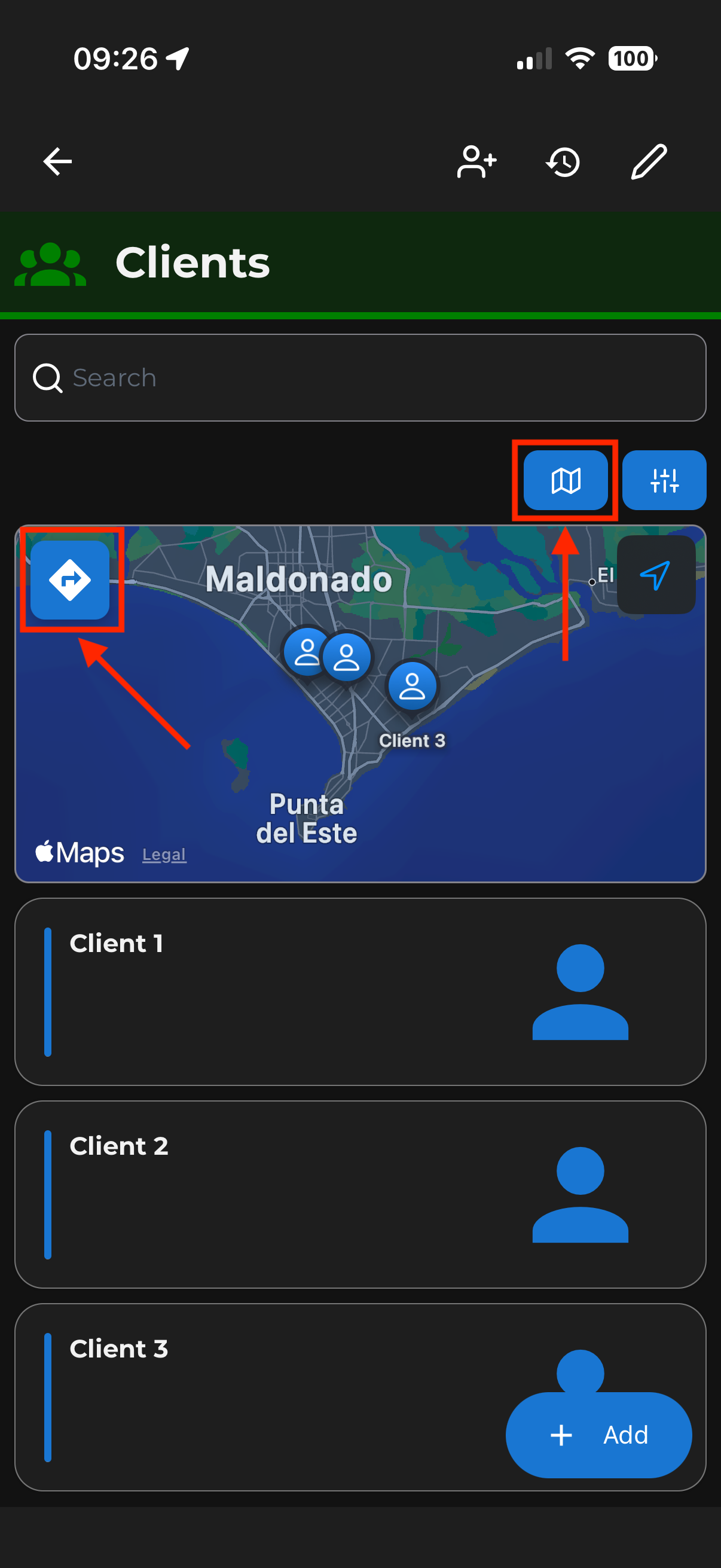
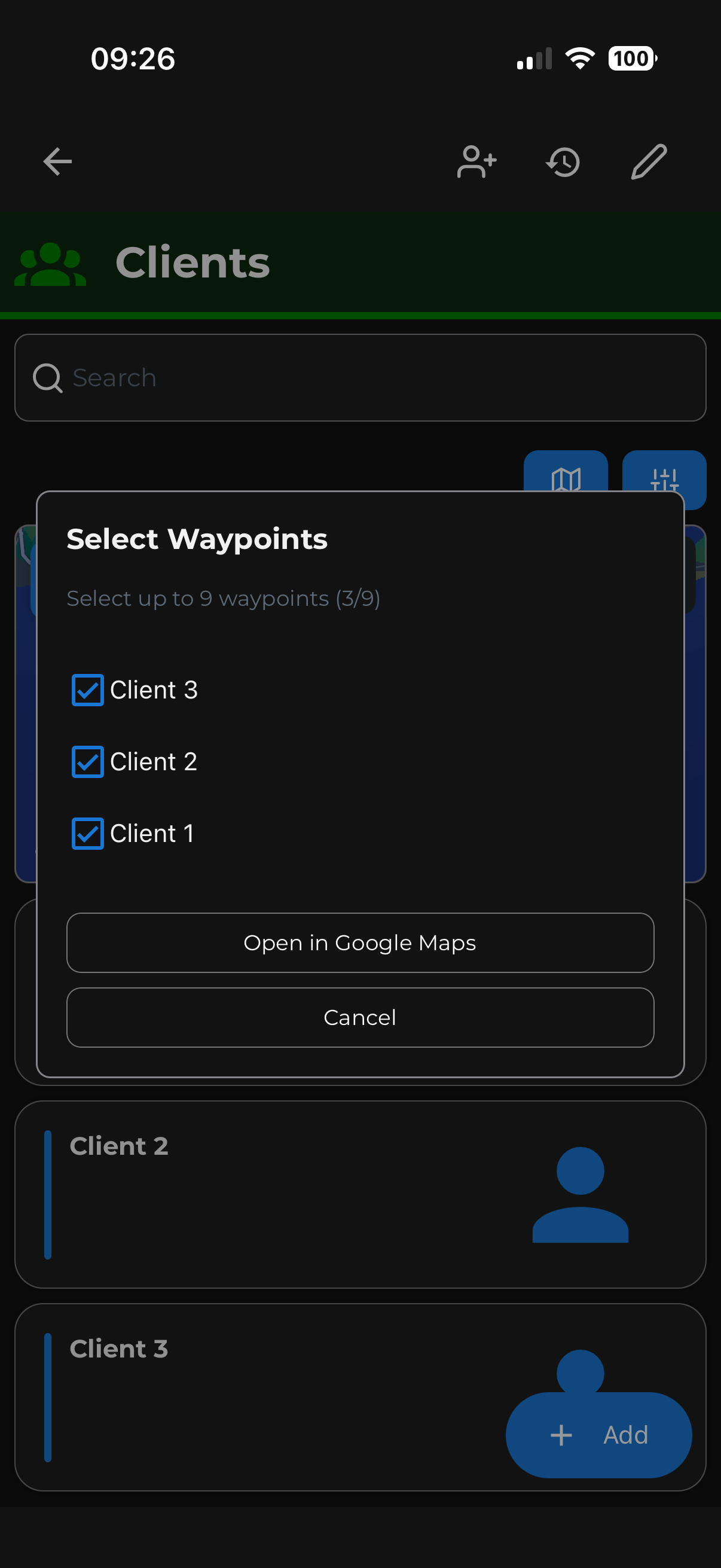
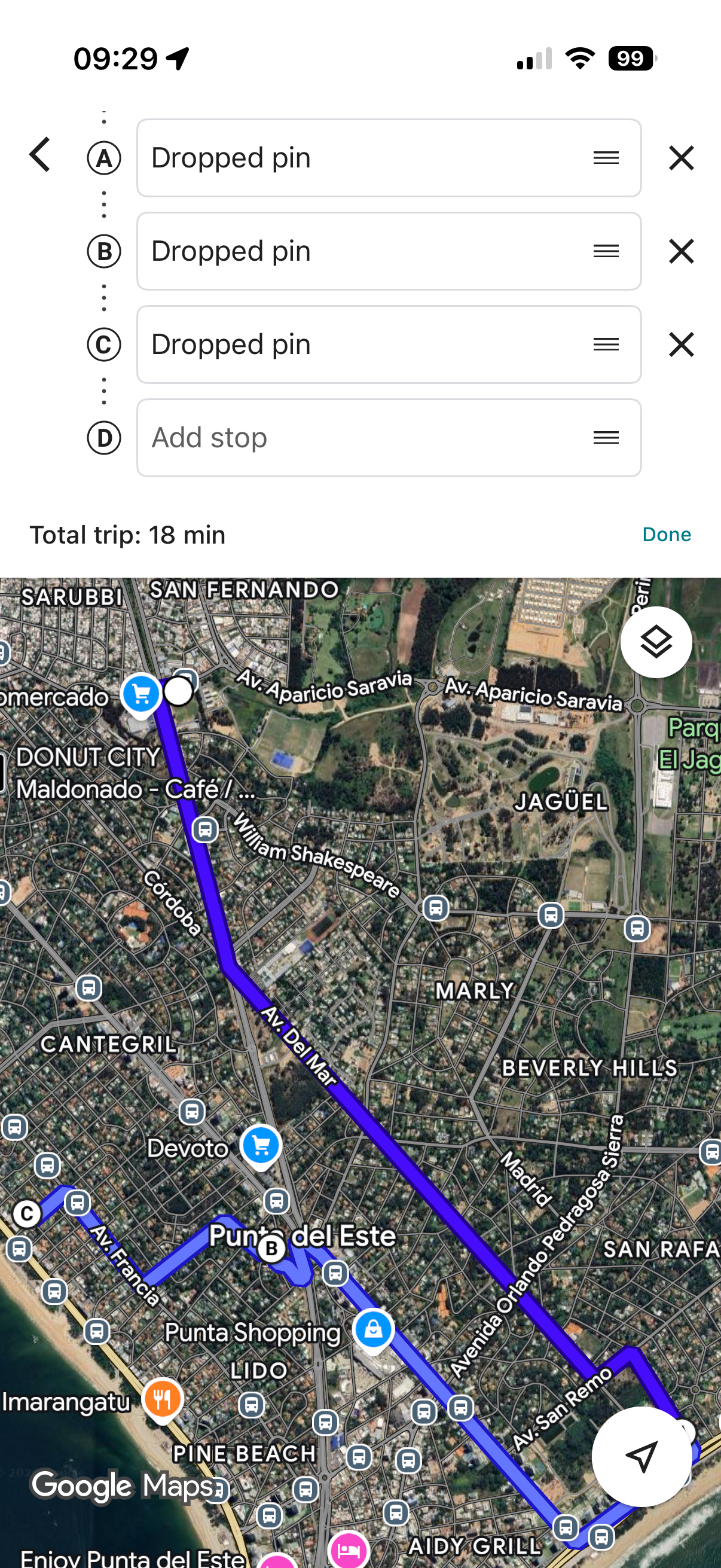
Add a location to each sub-folder inside a main folder. A map icon will then appear on the main folder view — tap it to see all locations and launch navigation.
Note: Keep in mind that there is a maximum of 9 locations you can route.
Google Sheets Integration
You can sync task completions to a Google Spreadsheet automatically.
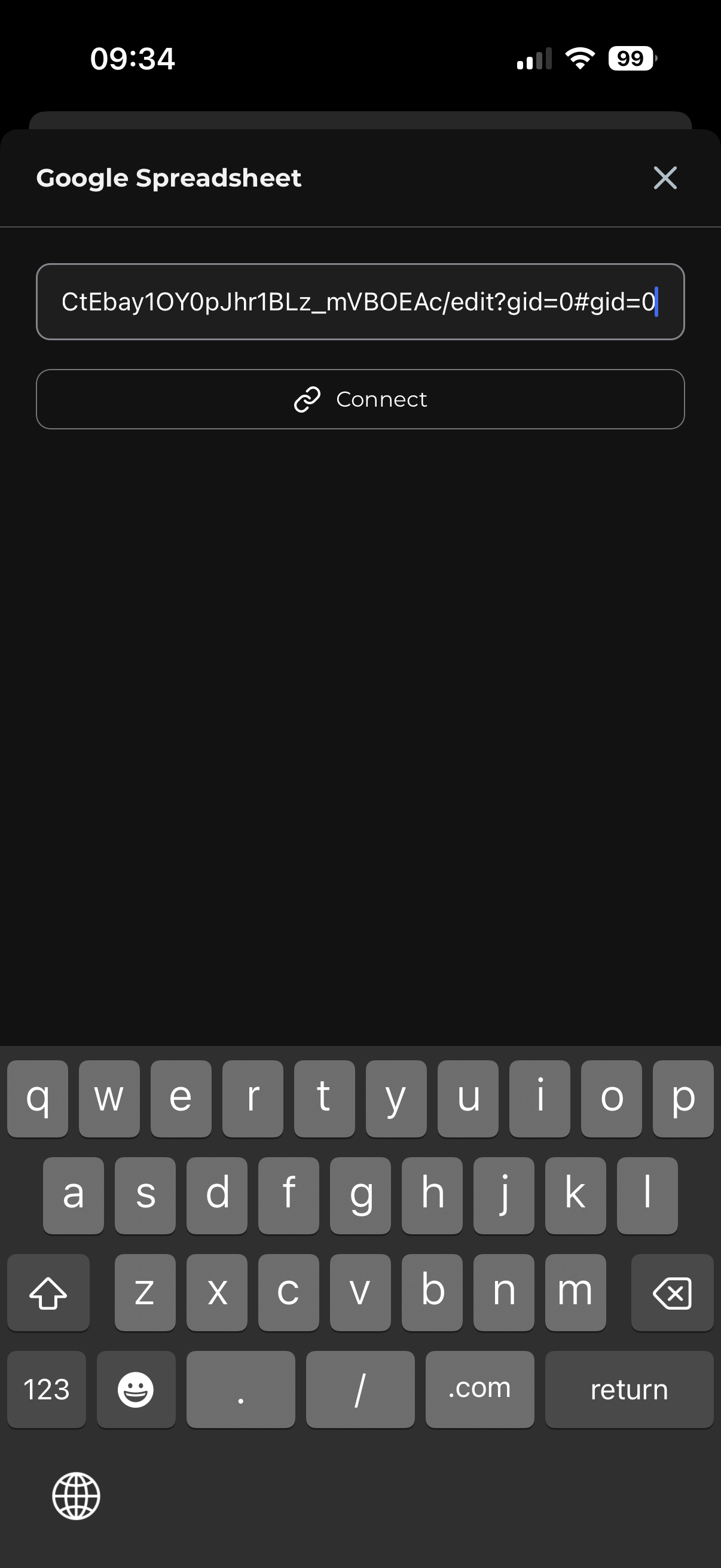
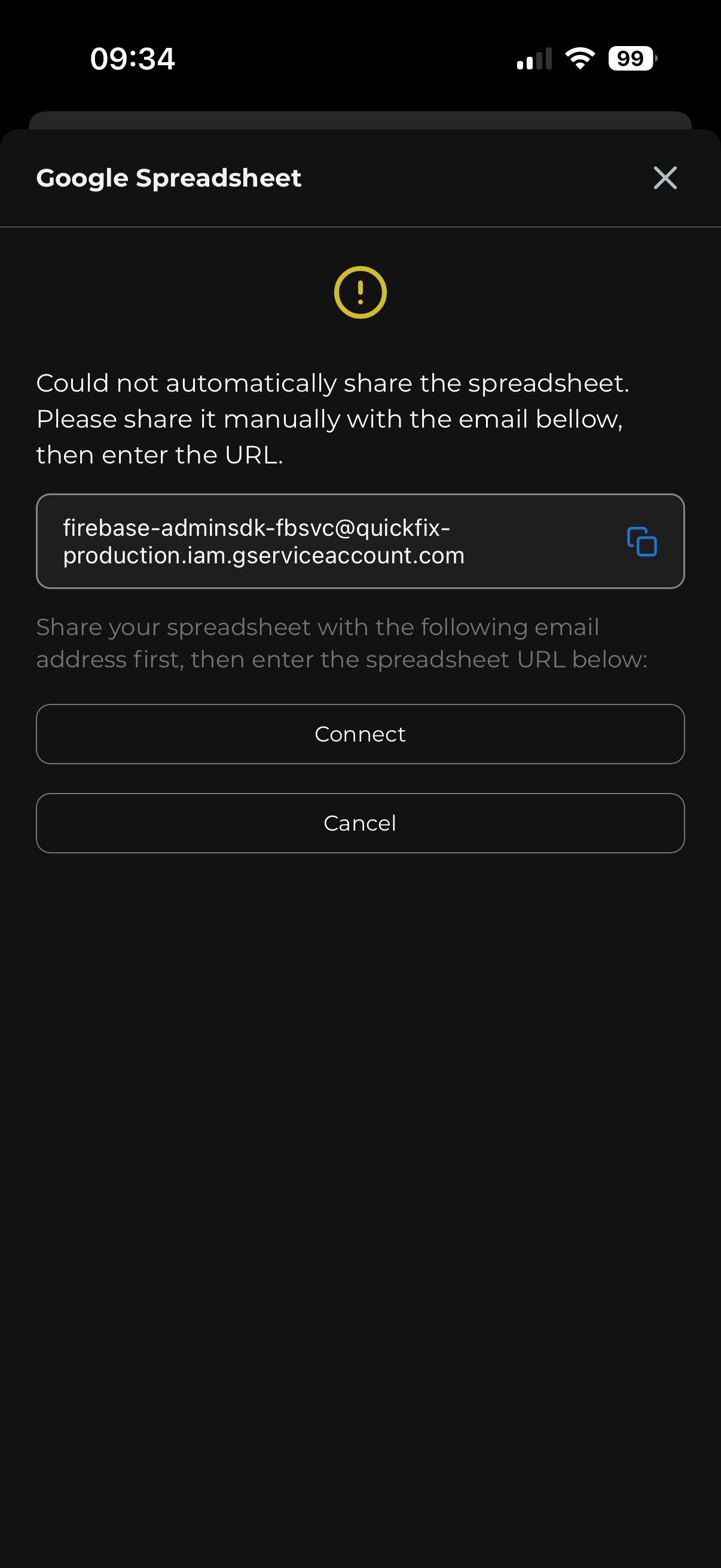
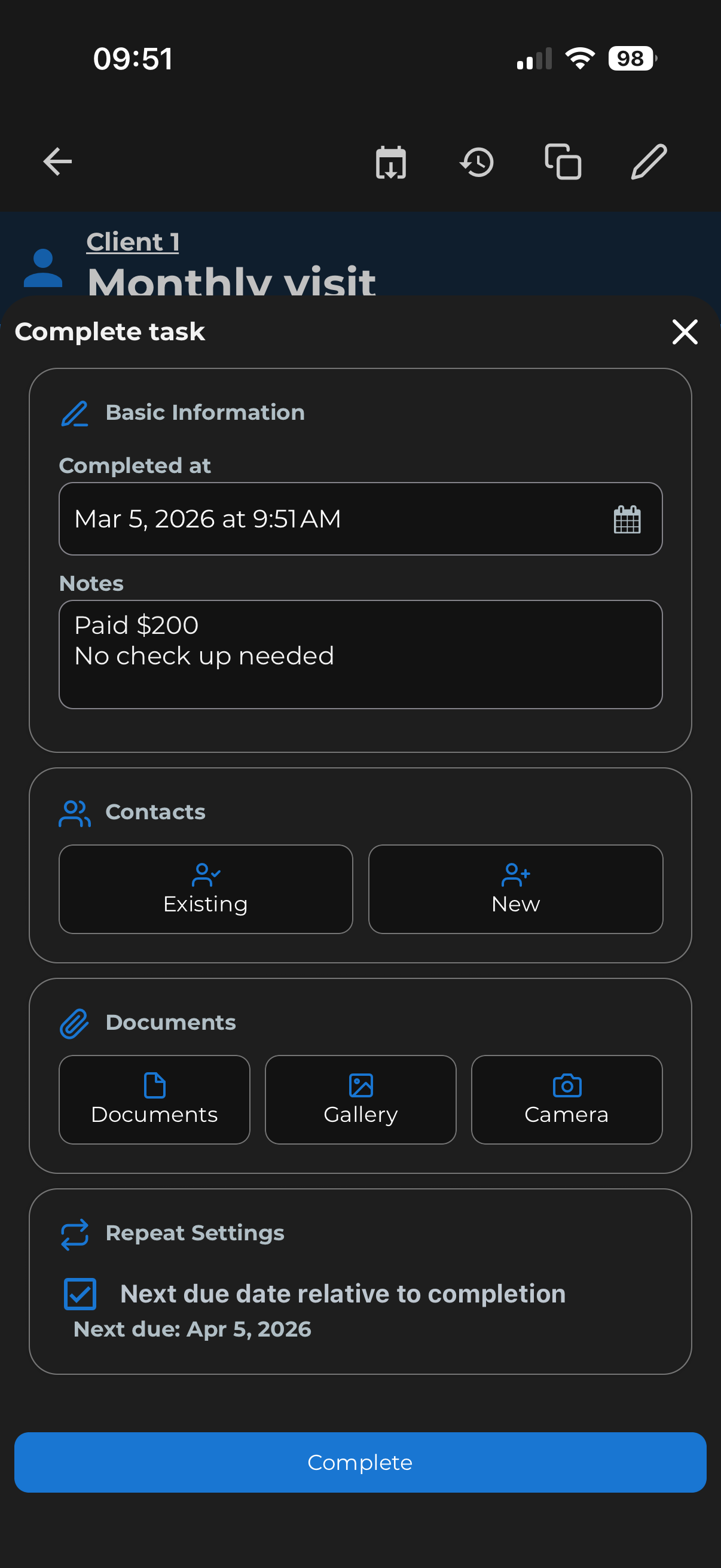
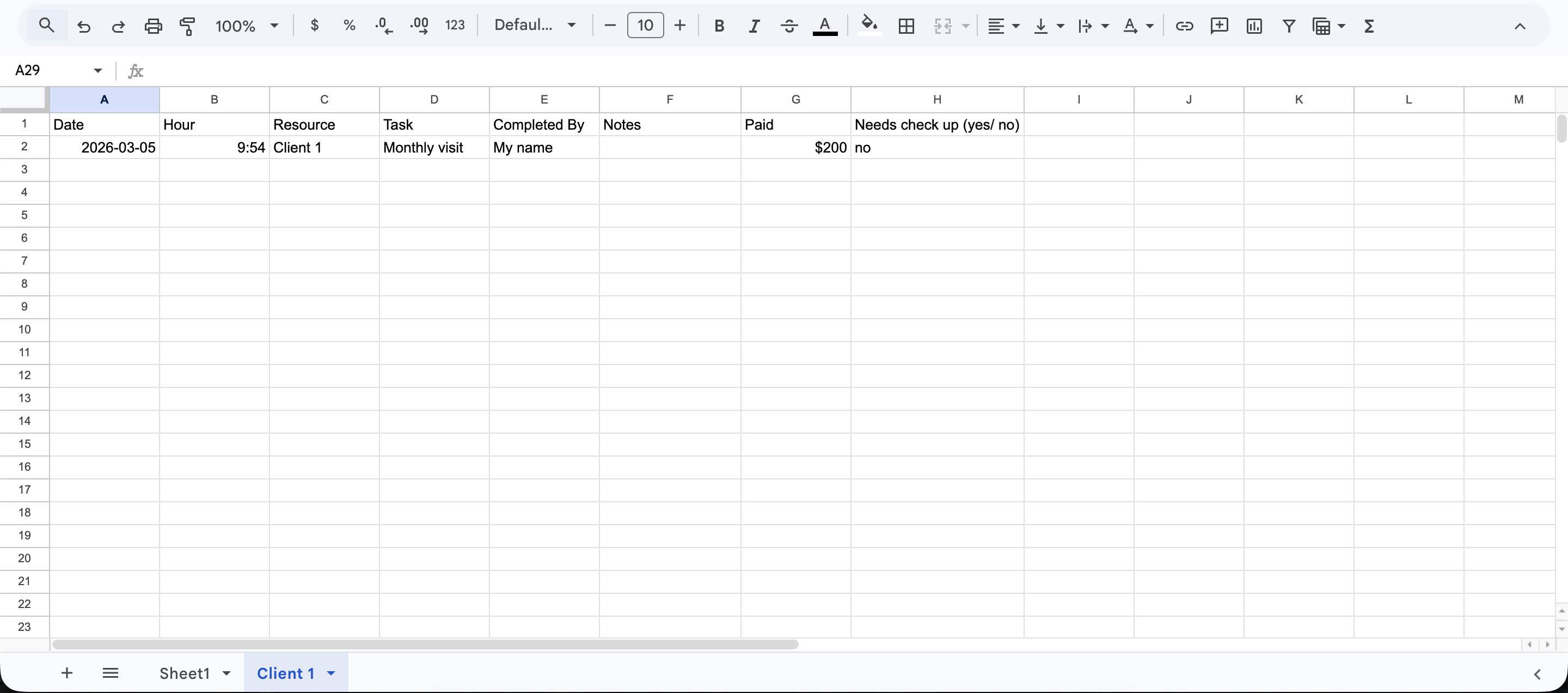
- Setup: Create a Google Spreadsheet and copy its URL.
- Google login: Paste the URL in the app’s Spreadsheet Configuration settings.
- Other login methods: The settings screen shows a specific email address — share your spreadsheet with that address to connect it.
- How it works: Each time a task is completed in a folder you own, a new row is added to the sheet corresponding to that folder.
You can add custom columns after the default ones. They will be filled with whatever data is in the notes field of the task completion.
Duplicating Tasks
When you need to create the same task across multiple folders, duplicate it instead of recreating it from scratch.
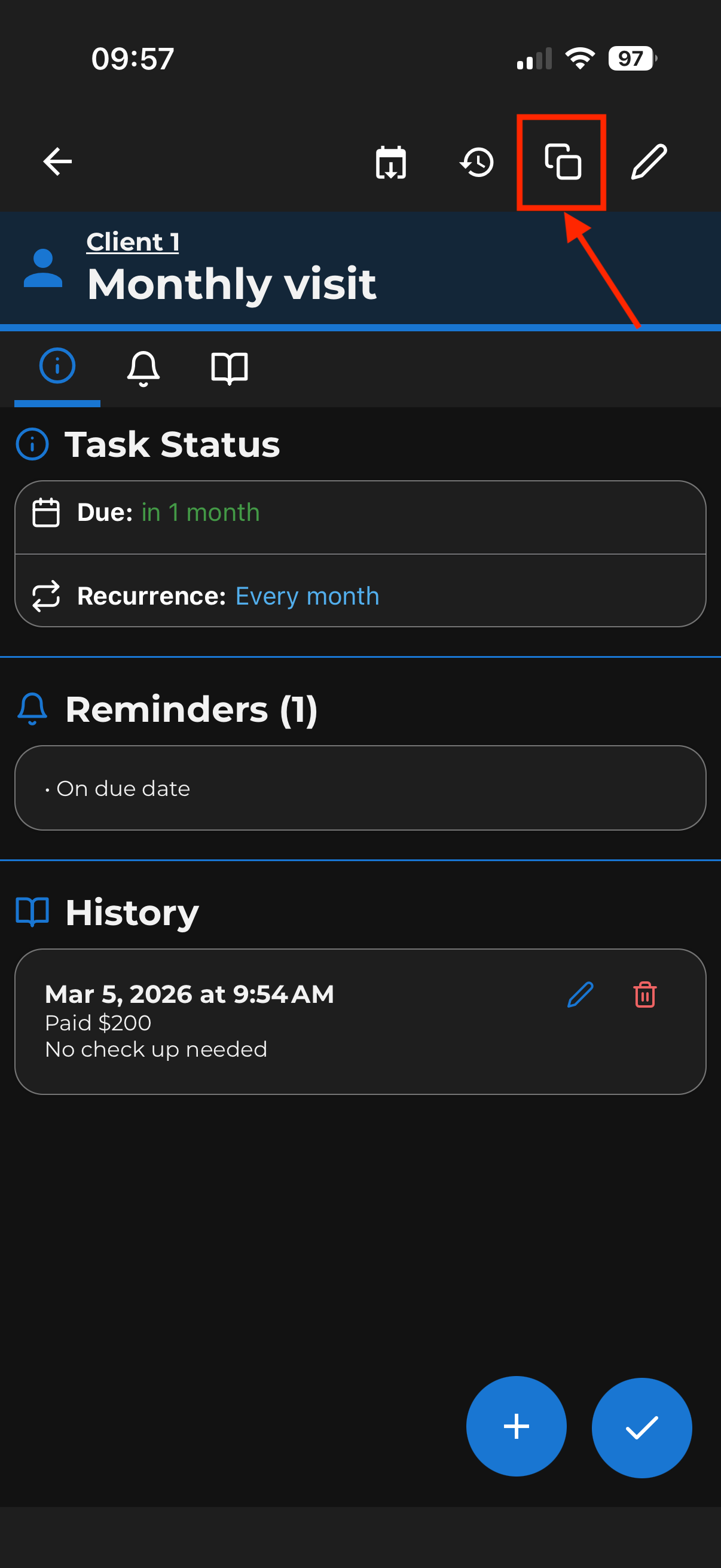
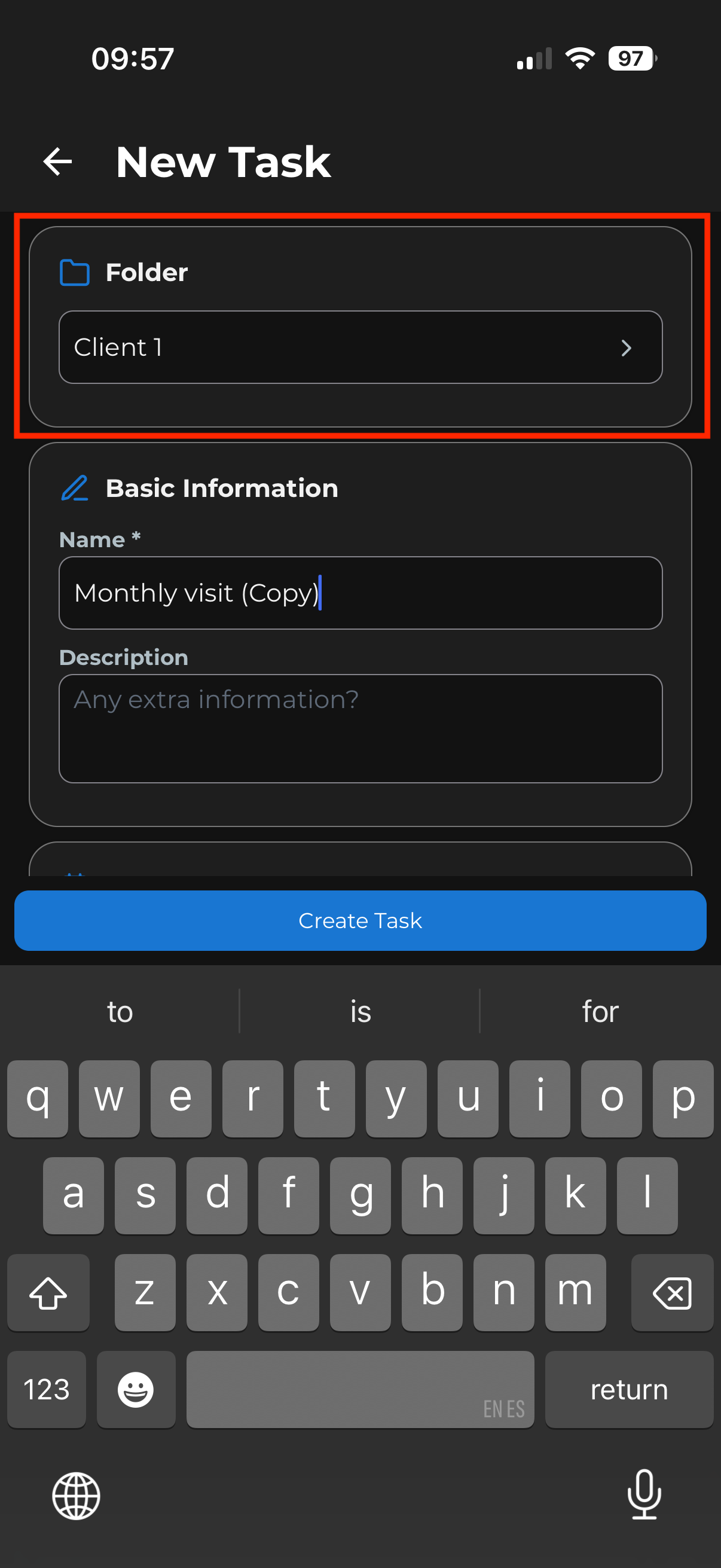
- What gets copied: name, description, dates, attached files, contacts, locations, and sub-task checklists.
- Destination: after tapping duplicate, select the parent folder where the new task should go.
Calendar Export
Open a task and tap the calendar icon at the top to export it to your phone’s calendar.
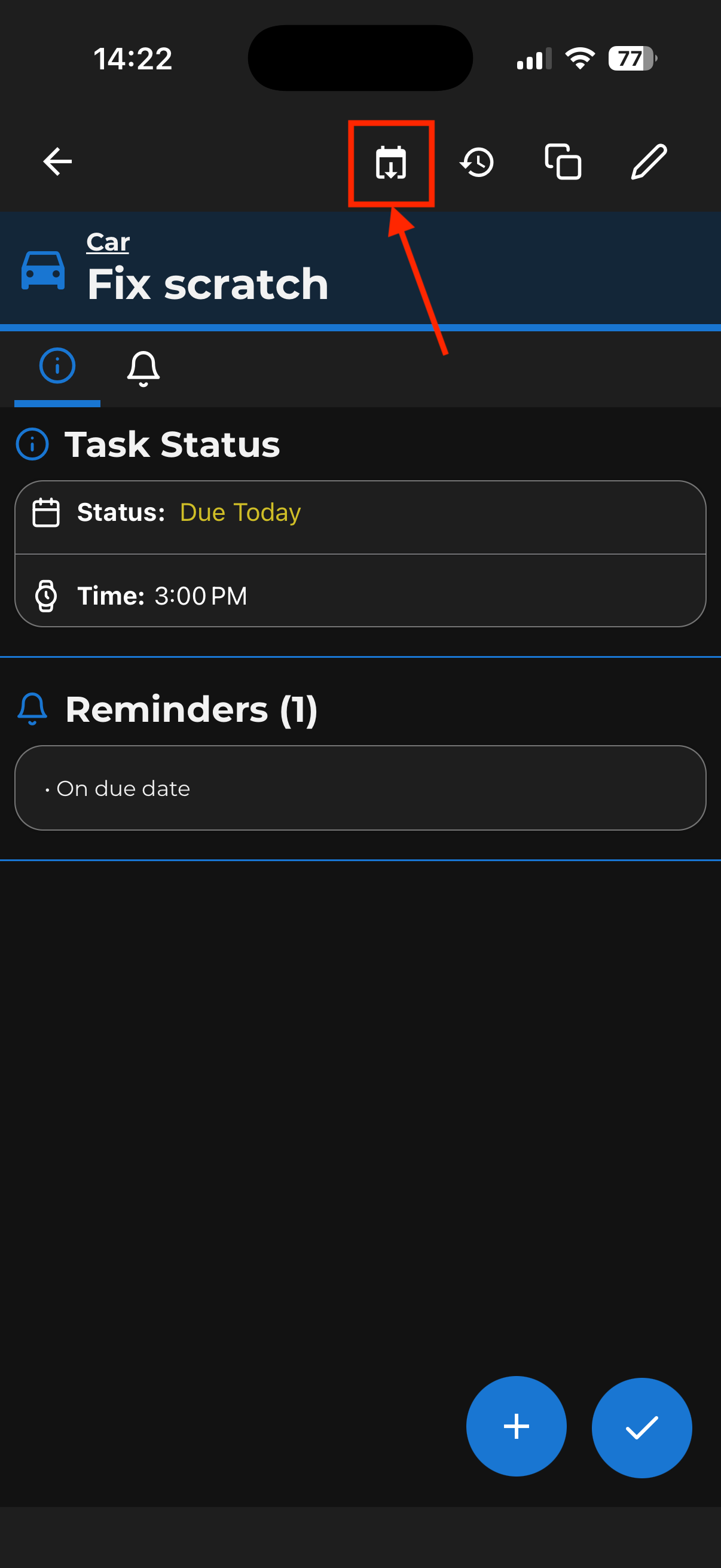
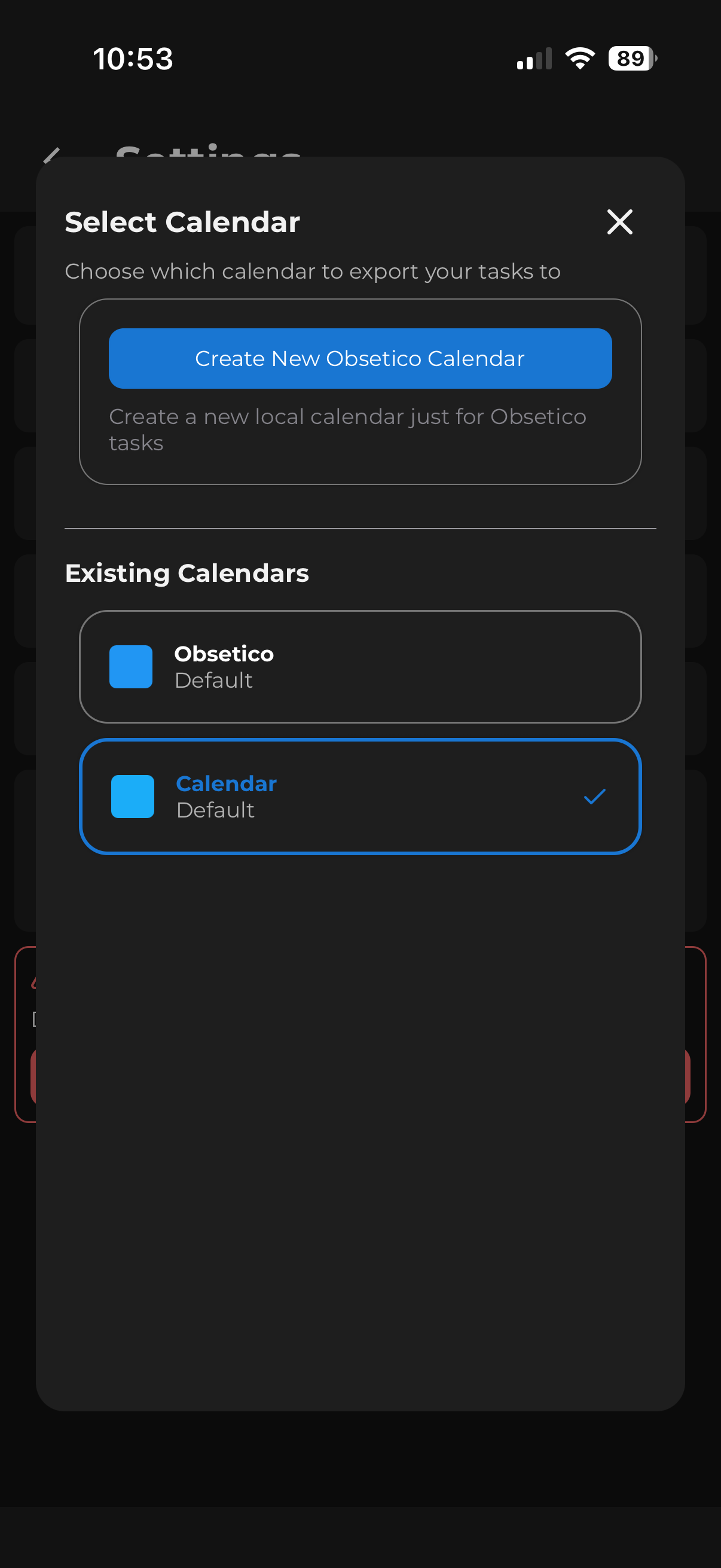
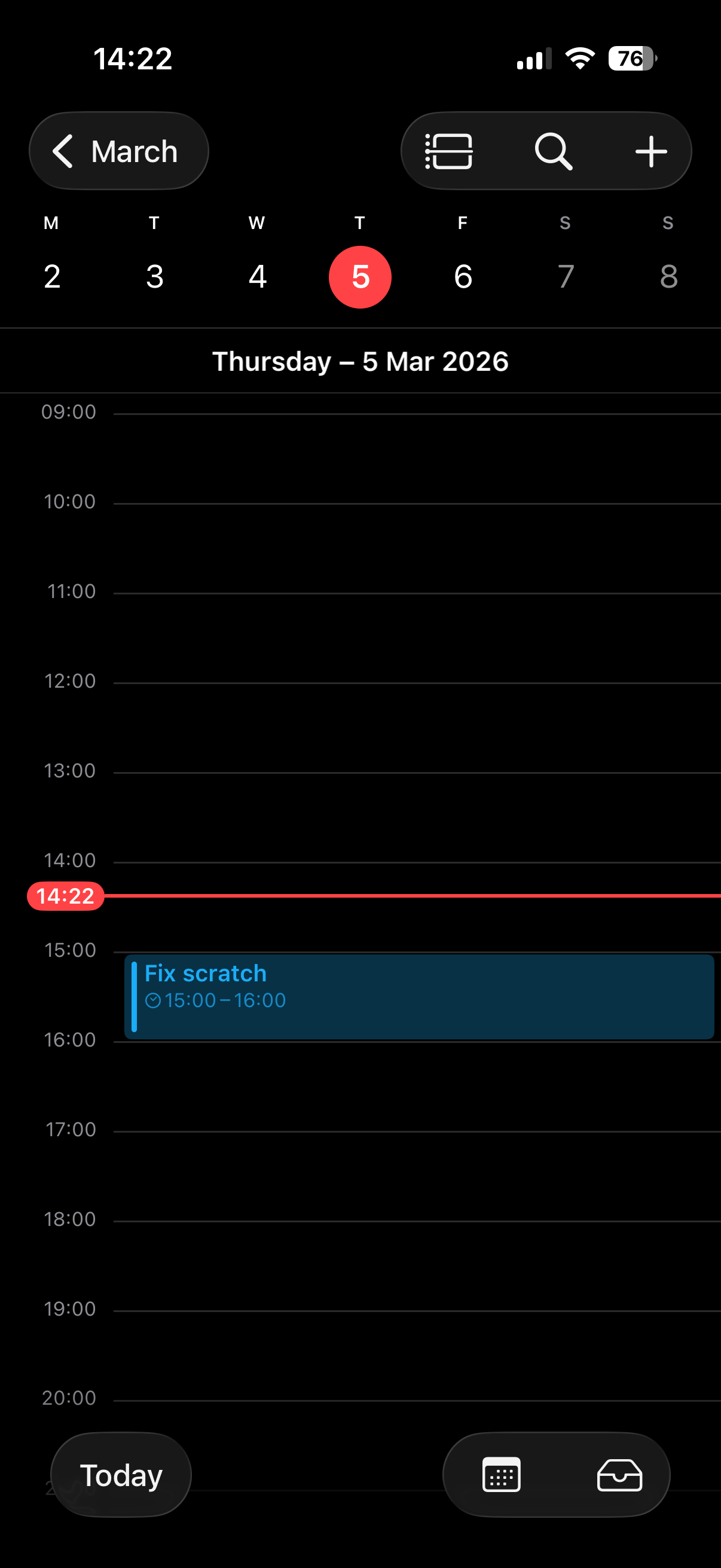
The first time, you’ll be asked which calendar to use — pick an existing one or create a new “Obsetico” calendar. Note that a calendar created this way only shows up in your phone’s default calendar app.
For Google Calendar or other services, make sure that account is already connected to your phone’s default calendar app, then select it in Obsetico settings.
Quick Tip: If you manually edit a task in the app later, remember to tap the calendar icon again to make sure the details stay updated on your calendar.
Long-press Shortcuts
- Folders: Long-press any folder card to open the edit form.
- Tasks: Long-press a standalone task to move it to a folder, delete it, or select multiple tasks at once.
- Task status cards: A regular tap opens the full edit form.
AI Features
Contact from Image
If you have a photo of a business card or invoice, you can create a contact from it without typing.
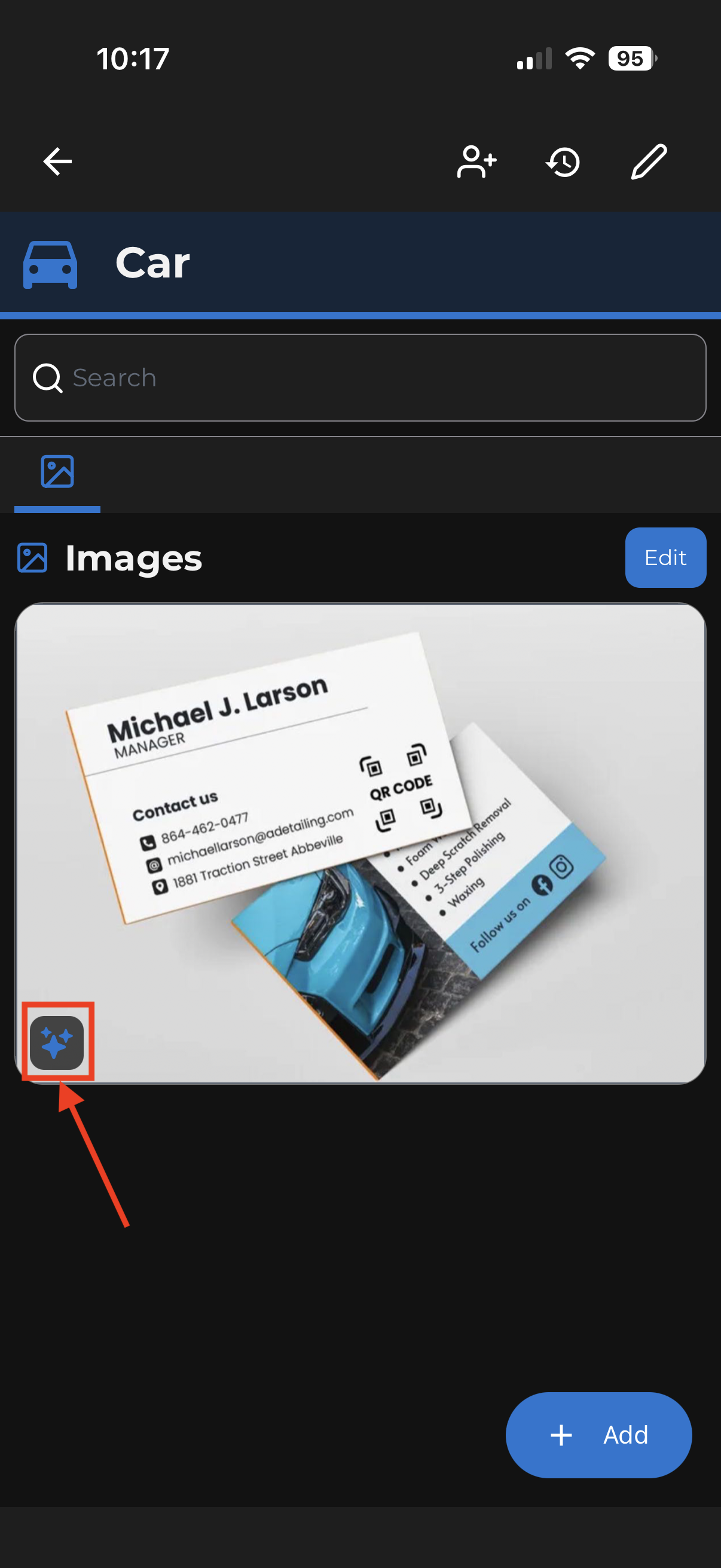
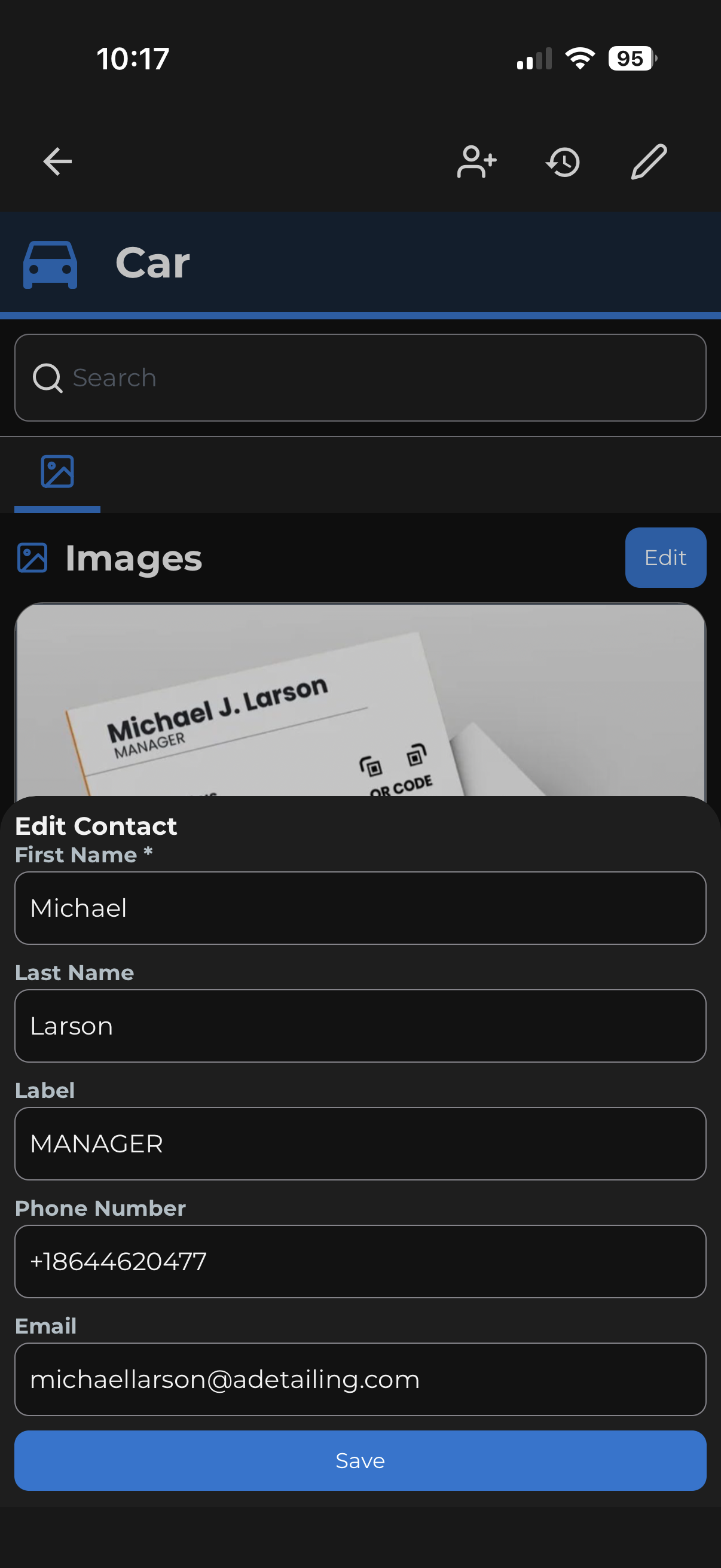
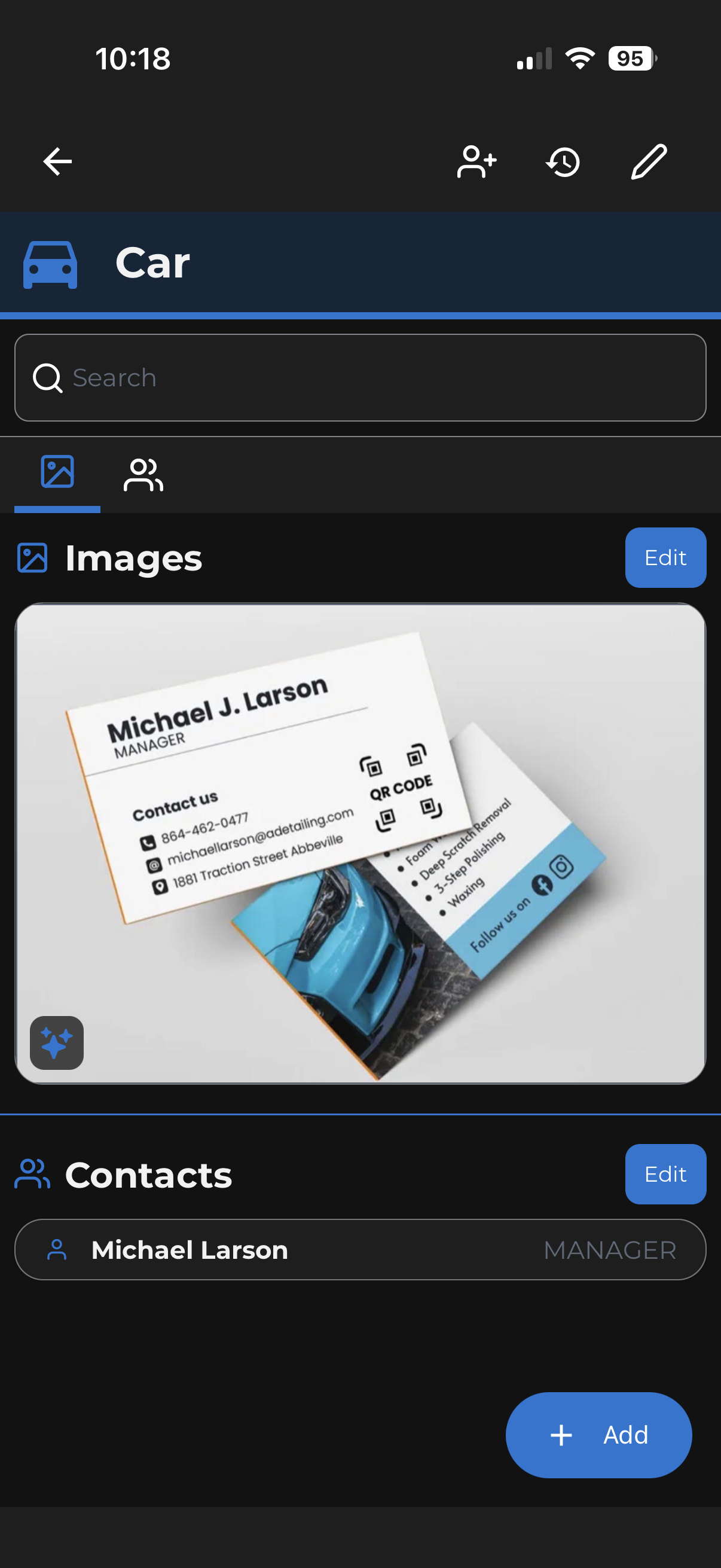
Upload the image to a task or folder, then tap the AI icon on the bottom left of the image. The app will extract the text and pre-fill a contact form.
Add Tasks with Voice
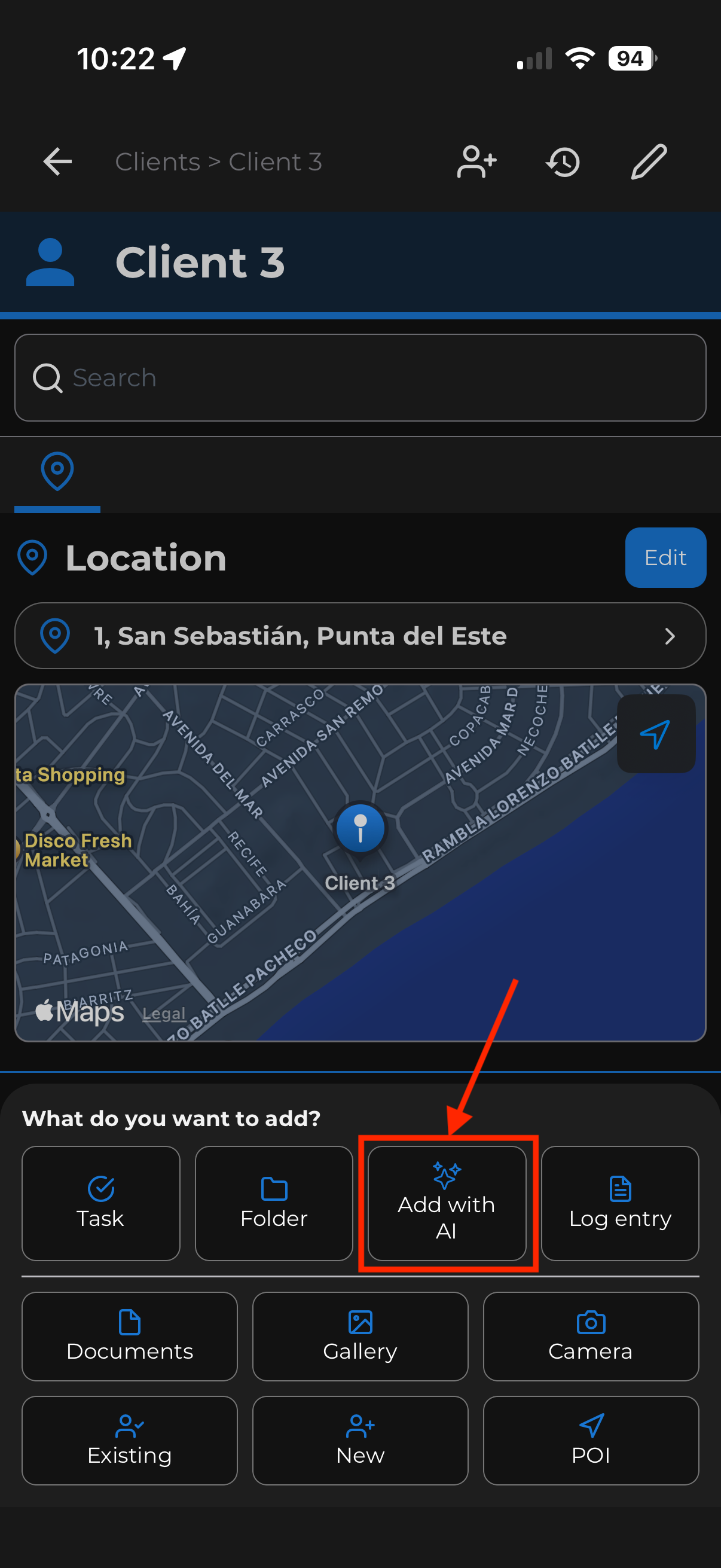
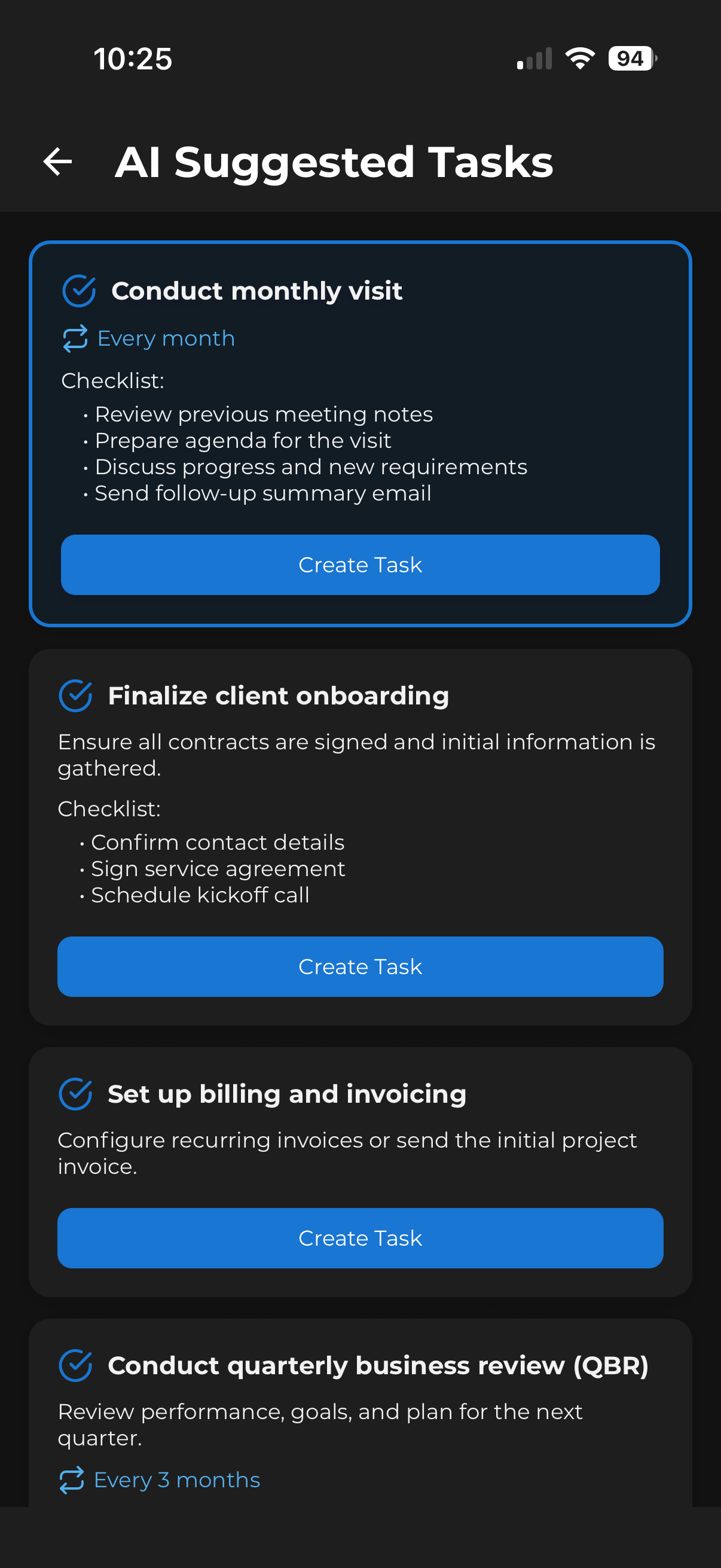
Tap the “+” button and choose “Add with AI” to record your voice. The app will suggest tasks and folders based on what you said and your existing data.
- Tasks or folders you specifically mentioned are highlighted in blue.
- The AI suggests up to 5 tasks and 2 folders, taking into account existing sub-folders and tasks in the current folder.
Tasks Without a Due Date
Two approaches for tasks that don’t have a specific deadline:
- Far future date: Set the due date well into the future with the earliest notification time. The task stays visible as “Pending” in your upcoming tab.
- Past date: Set the due date to a day in the past. The task will always appear as overdue in your upcoming list.
Saving Files Shared from Other Apps
If you receive a file in another app (email, messages, etc.) that you want to attach in Obsetico, tap the share button and select Obsetico.
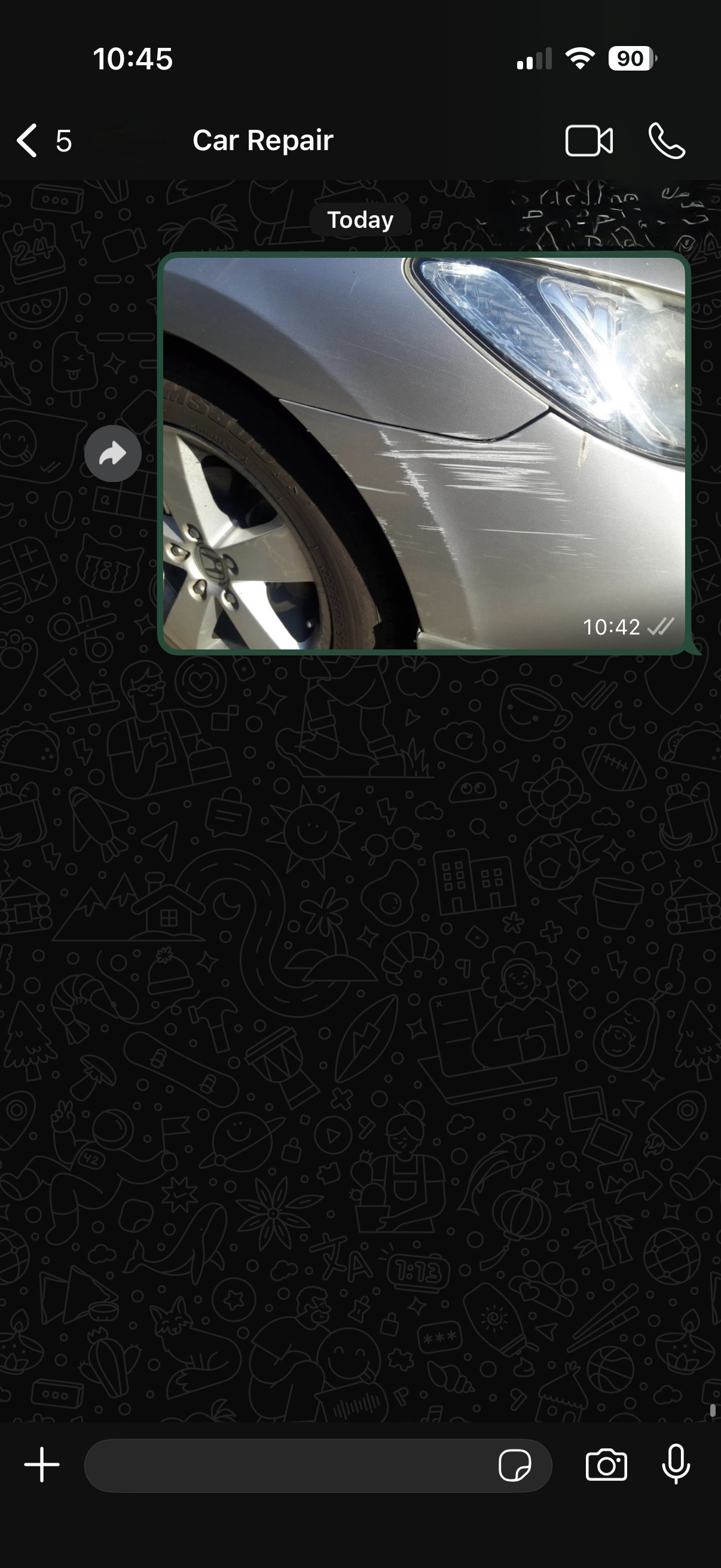
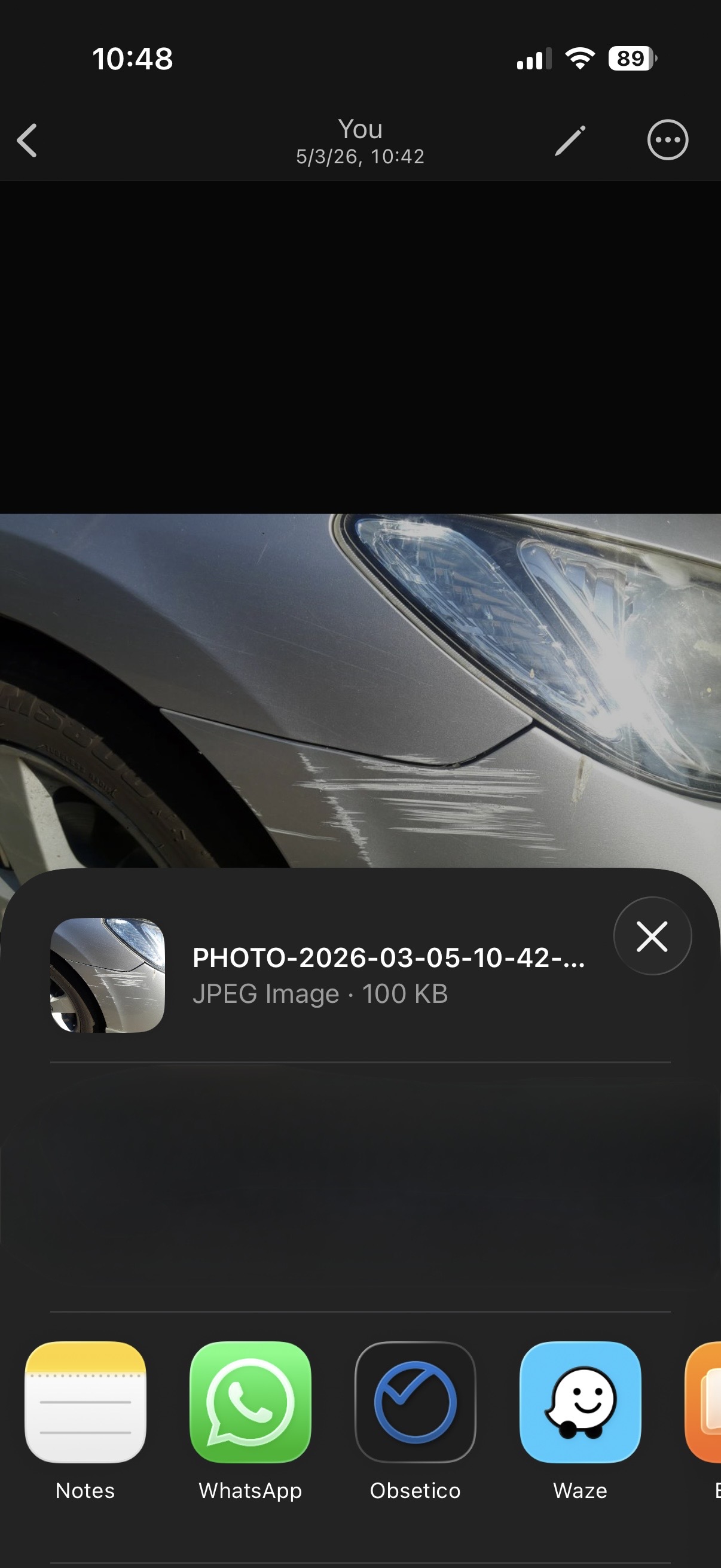
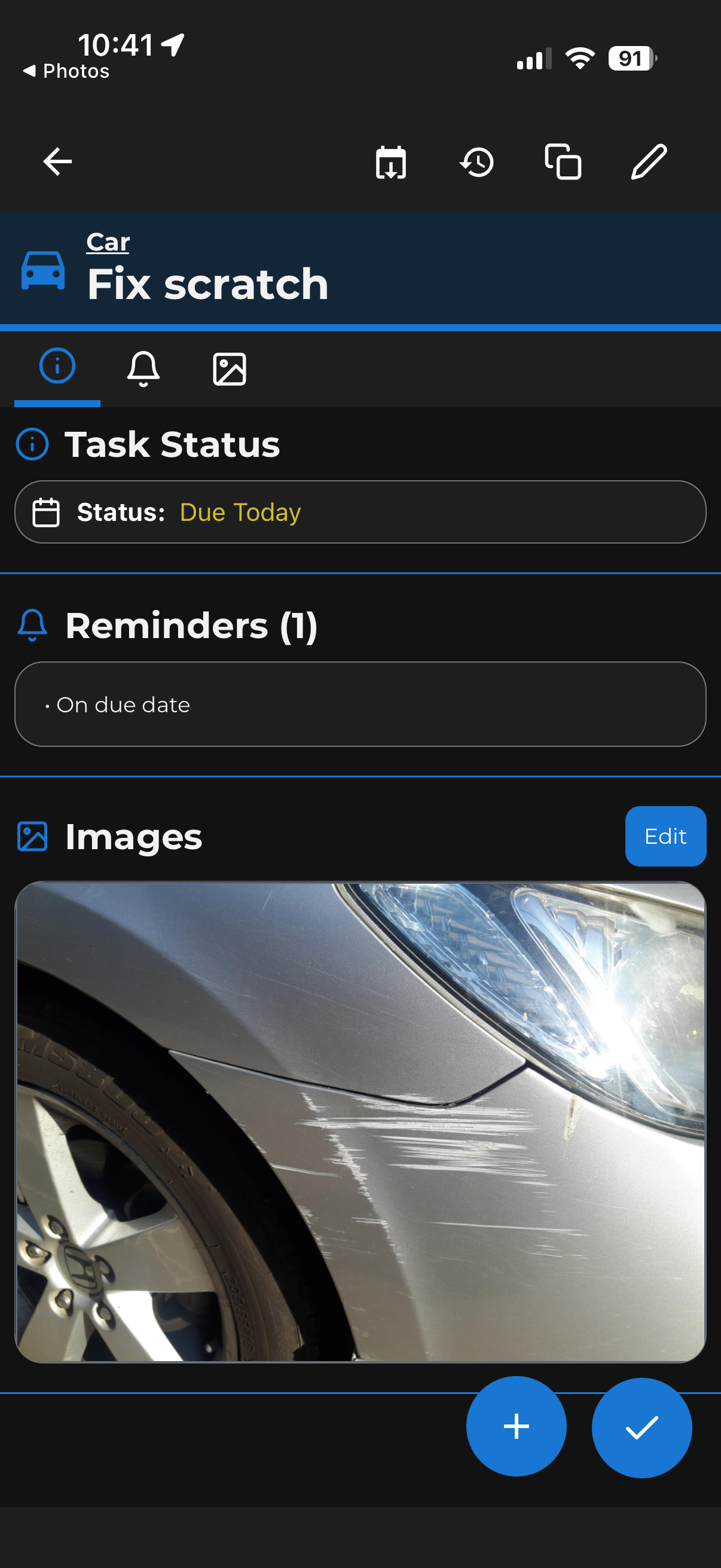
You’ll be taken directly to the app and asked whether to attach it to a folder or task.
Feedback and Feature Requests
Your experience matters. If you have ideas for new features or improvements, please share them with us through the in-app feedback form, by joining our Discord server or by emailing us directly at support@obsetico.com
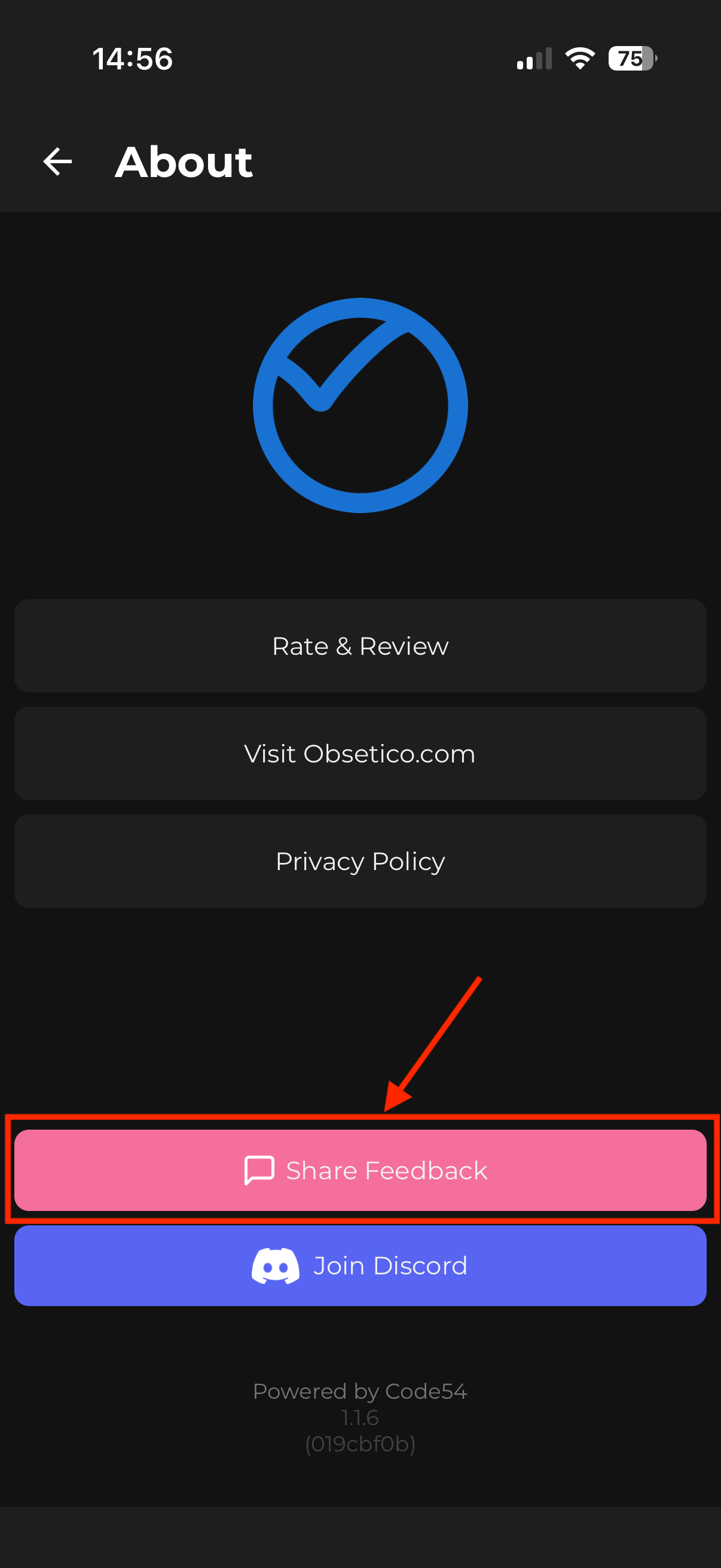
Be sure to leave a review on the app store if you find the app useful. Your support helps us continue to improve and add new features! Thank you for being part of the Obsetico community - Obsetico Team!